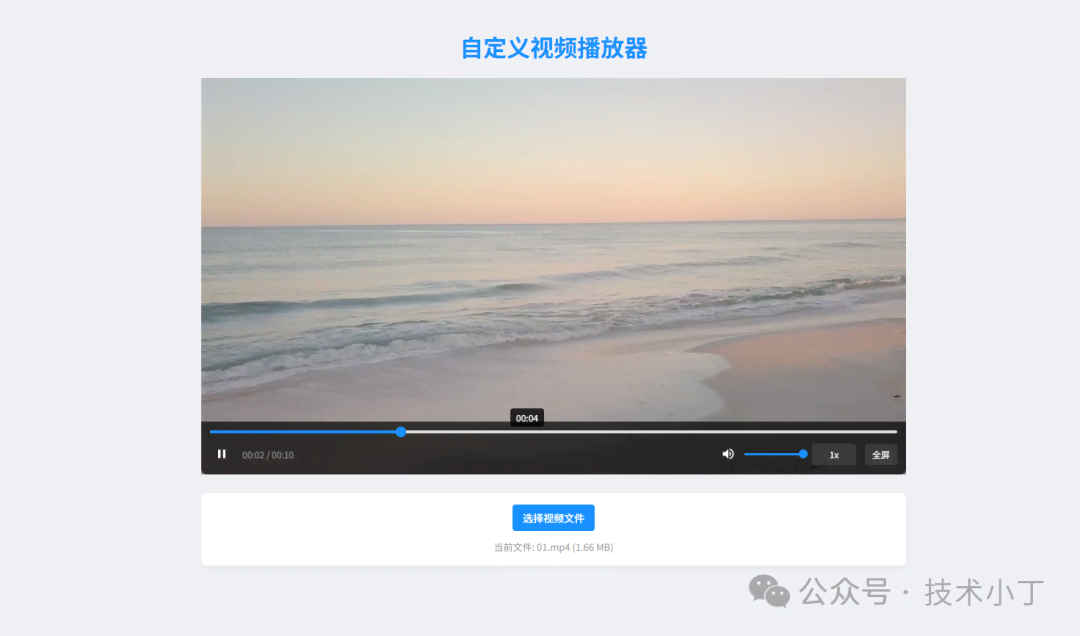
随着视频内容日益丰富,用户对视频播放体验的要求也越来越高。默认的浏览器视频播放器虽然提供了基础功能,但在外观定制、交互细节和用户体验方面往往难以满足特定需求。一个精心设计的自定义视频播放器不仅能提供统一的界面风格,还能增强交互体验,比如添加进度条预览、键盘快捷键、更流畅的控制栏动画等。这些功能让用户在观看视频时获得更加舒适和便捷的操作体验,同时为开发者提供了更大的灵活性来满足不同场景下的特殊要求。本文将介绍如何使用 HTML、CSS 和 JavaScript 实现一个功能丰富的自定义视频播放器。效果演示
这个自定义视频播放器实现了丰富的交互功能。用户可以通过点击播放/暂停按钮或直接点击视频区域来控制播放状态。进度条支持拖拽操作,用户可以快速跳转到视频的任意位置,同时在悬停时会显示预览时间。播放器还提供了音量控制滑块,支持静音切换,并有多种播放速度选项可供选择。控制栏会在鼠标移开后自动隐藏,当鼠标移入时重新显示,节省屏幕空间。此外,播放器支持全屏模式切换,并提供键盘快捷键支持(空格键播放/暂停、方向键快进/快退、F键全屏、M键静音)。
页面结构
播放器容器区域
包含视频元素和控制栏,设置了固定的高度并使用相对定位以便控制栏定位。<div class="player-container" id="playerContainer"> <video id="video">您的浏览器不支持HTML5视频播放</video>
<div class="controls-container" id="controlsContainer"> </div></div>
进度控制区域
包含进度条容器和预览时间显示,用于显示播放进度和实现拖拽跳转功能。<div class="progress-controls"> <div class="progress-bar-container" id="progressContainer"> <div class="progress-bar" id="progressBar"></div> <div class="preview-time" id="previewTime">00:00</div> </div></div>
主控制区域
分为左右两部分,左侧包含播放/暂停按钮和时间显示,右侧包含音量控制、播放速度选择和全屏按钮。<div class="main-controls"> <div class="left-controls"> <div class="control-element" id="playPause"></div> <div class="time-display" id="currentTimeDisplay">00:00 / 00:00</div> </div>
<div class="right-controls"> <div class="volume-container"> <div class="control-element" id="volumeBtn"></div> <div class="volume-slider" id="volumeSliderContainer"> <div class="volume-level" id="volumeLevel"></div> <input type="range" id="volumeSlider" min="0" max="1" step="0.01" value="1"> </div> </div>
<div class="speed-container"> <div class="speed-element" id="speedToggle"> <span id="currentSpeed">1x</span> </div> <div class="speed-dropdown" id="speedDropdown"> <div class="speed-btn" data-speed="0.5">0.5x</div> <div class="speed-btn" data-speed="0.75">0.75x</div> <div class="speed-btn active" data-speed="1">1x</div> <div class="speed-btn" data-speed="1.25">1.25x</div> <div class="speed-btn" data-speed="1.5">1.5x</div> <div class="speed-btn" data-speed="2">2x</div> </div> </div>
<div class="fullscreen-element" id="fullScreenBtn">全屏</div> </div></div>
核心功能实现
播放/暂停功能实现
播放/暂停功能是视频播放器的核心交互之一。playPauseBtn 按钮和 video 元素都绑定了点击事件,当用户点击播放/暂停按钮或直接点击视频区域时,根据视频当前是否处于暂停状态来决定执行播放还是暂停操作。playPauseBtn.addEventListener('click', togglePlay);video.addEventListener('click', togglePlay);
function togglePlay() { if (video.paused || video.ended) { video.play().catch(e => {console.error('播放失败:', e);}); playPauseBtn.innerHTML = SVGIcons.pause; } else { video.pause(); playPauseBtn.innerHTML = SVGIcons.play; }}
进度条与拖拽功能
进度条功能不仅需要实时显示当前播放进度,还需要支持用户拖拽跳转到指定时间点。本系统通过监听视频的 timeupdate 事件来更新进度条宽度。updateProgress 函数在每次视频时间更新时被调用,它根据当前时间和总时长计算进度条的宽度百分比。video.addEventListener('timeupdate', function() { if (!isDragging) { updateProgress(); }});
function updateProgress() {  const currentTime = video.currentTime;  const duration = video.duration;
  if (duration && duration > 0) {    const percent = (currentTime / duration) * 100;    progressBar.style.width = `${percent}%`;
    if (!isDragging) {      if (video.duration) {        currentTimeDisplay.textContent = `${formatTime(currentTime)} / ${formatTime(video.duration)}`;      }    }  }}
对于进度条的拖拽功能,我们需要跟踪鼠标位置,计算相对于进度条的百分比,然后设置视频的 currentTime 属性。在拖拽过程中,使用 isDragging 标志来防止 timeupdate 事件更新进度条,这样可以保持用户拖拽时的视觉反馈。当拖拽结束后,我们将临时存储的时间赋值给视频的 currentTime 属性,实现跳转功能。progressContainer.addEventListener('mousedown', startDragging);document.addEventListener('mousemove', drag);document.addEventListener('mouseup', stopDragging);
function startDragging(e) {  e.preventDefault();  isDragging = true;  progressContainer.classList.add('dragging');  drag(e);}
function drag(e) {  if (!isDragging) return;
  const rect = progressContainer.getBoundingClientRect();  let pos = (e.clientX - rect.left) / progressContainer.offsetWidth;
  if (pos < 0) pos = 0;  if (pos > 1) pos = 1;
  const time = pos * video.duration;  tempDragTime = time;  updatePreview(pos * 100, time);  progressBar.style.width = `${pos * 100}%`;}
function stopDragging() {  if (isDragging) {    isDragging = false;    progressContainer.classList.remove('dragging');
    if (tempDragTime !== null) {      video.currentTime = tempDragTime;      tempDragTime = null;    }
    updateProgress();    hidePreview();  }}
播放速度控制功能
播放速度控制允许用户在不同的播放速度之间切换,提升观看效率。这个下拉菜单包含多个速度选项,当用户点击某个选项时,更新视频的 playbackRate 属性并更新当前速度显示。speedButtons.forEach(button => { button.addEventListener('click', function() { const speed = parseFloat(this.getAttribute('data-speed'));
speedButtons.forEach(btn => btn.classList.remove('active')); this.classList.add('active');
video.playbackRate = speed; currentSpeedSpan.textContent = this.textContent; speedDropdown.classList.remove('show'); isSpeedMenuOpen = false; if (!controlsContainer.matches(':hover')) { isSpeedMenuOpen = false; } });});
控制栏自动隐藏功能
为了提供更沉浸式的观看体验,控制栏会在一段时间内没有交互后自动隐藏。这里使用定时器跟踪用户的活动状态,当用户移动鼠标或与播放器交互时显示控制栏,否则在一定时间后将其隐藏。为播放器容器添加了 mousemove、mouseenter 和 mouseleave 事件监听器,分别处理鼠标移动、进入和离开播放器的场景。当鼠标在控制栏上方时,我们使用一些标志来防止控制栏被隐藏。playerContainer.addEventListener('mousemove', function() { showControls(); startHideTimer();});playerContainer.addEventListener('mouseenter', function() { showControls(); startHideTimer();});playerContainer.addEventListener('mouseleave', function() { if (!isOverControls && !isSpeedMenuOpen) { clearHideTimer(); startHideTimer(); }});
function showControls() {  controlsContainer.classList.add('visible');  controlsVisible = true;}
function hideControls() {  if (!isOverControls && !isSpeedMenuOpen) {    controlsContainer.classList.remove('visible');    controlsVisible = false;  }}
function startHideTimer() {  clearHideTimer();  hideTimer = setTimeout(() => {    if (!isOverControls && !isSpeedMenuOpen) hideControls();  }, 2000);}
function clearHideTimer() {  if (hideTimer) {    clearTimeout(hideTimer);    hideTimer = null;  }}
源码链接
阅读原文:原文链接
该文章在 2026/1/16 10:21:26 编辑过






 400 186 1886